

Import Chats into IAN Think
How to upload your exported Streamline chat history into IAN Think.
Upload the exported chat file into IAN Think to restore your full conversation history.
NoteMake sure you have completed the [Export Chats from Streamline](export-chats) step and have the `.json` file ready.
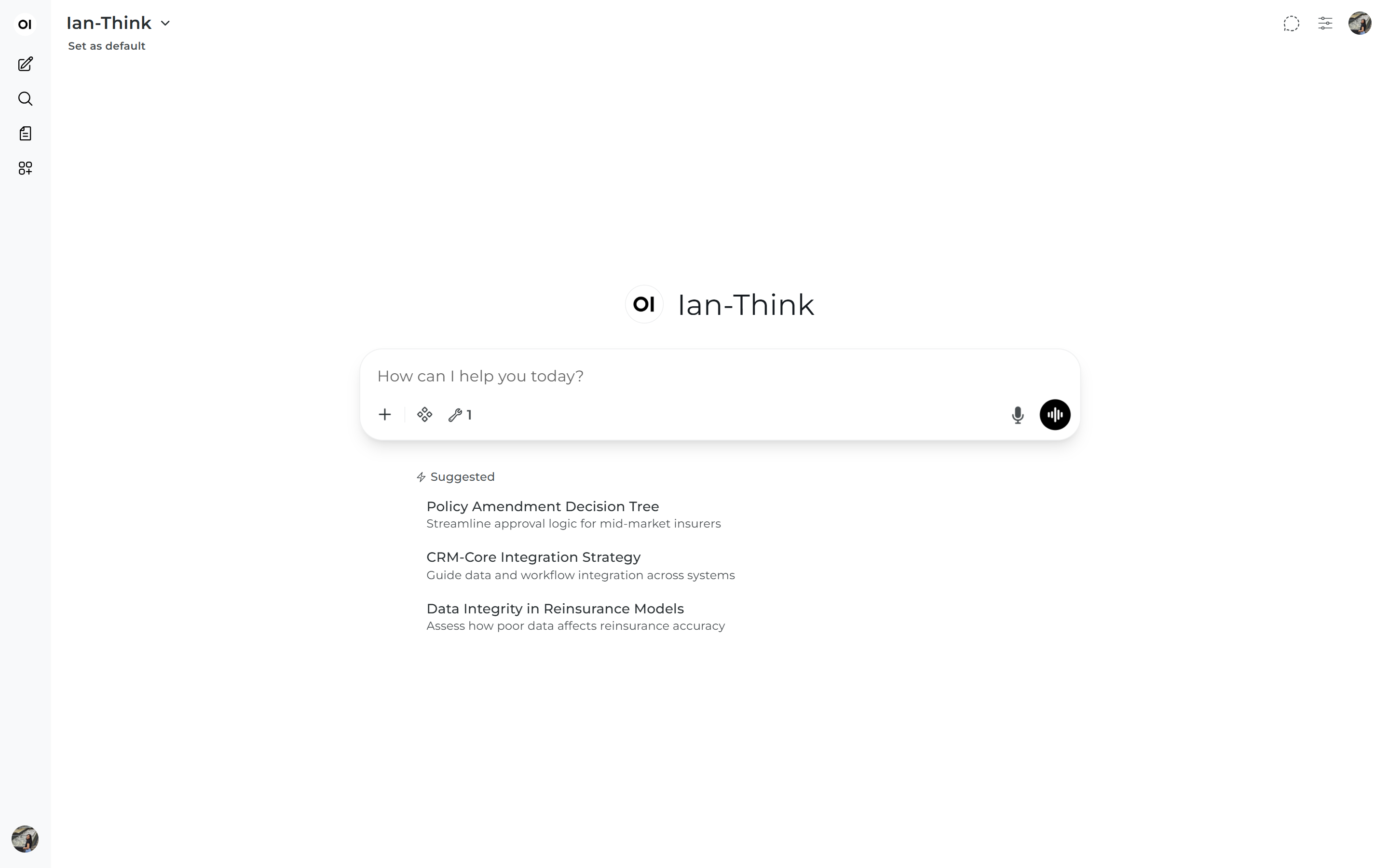
Step 1 — Open IAN Think
Navigate to think.ian.xceedance.com and sign in with your Xceedance SSO credentials and MFA.
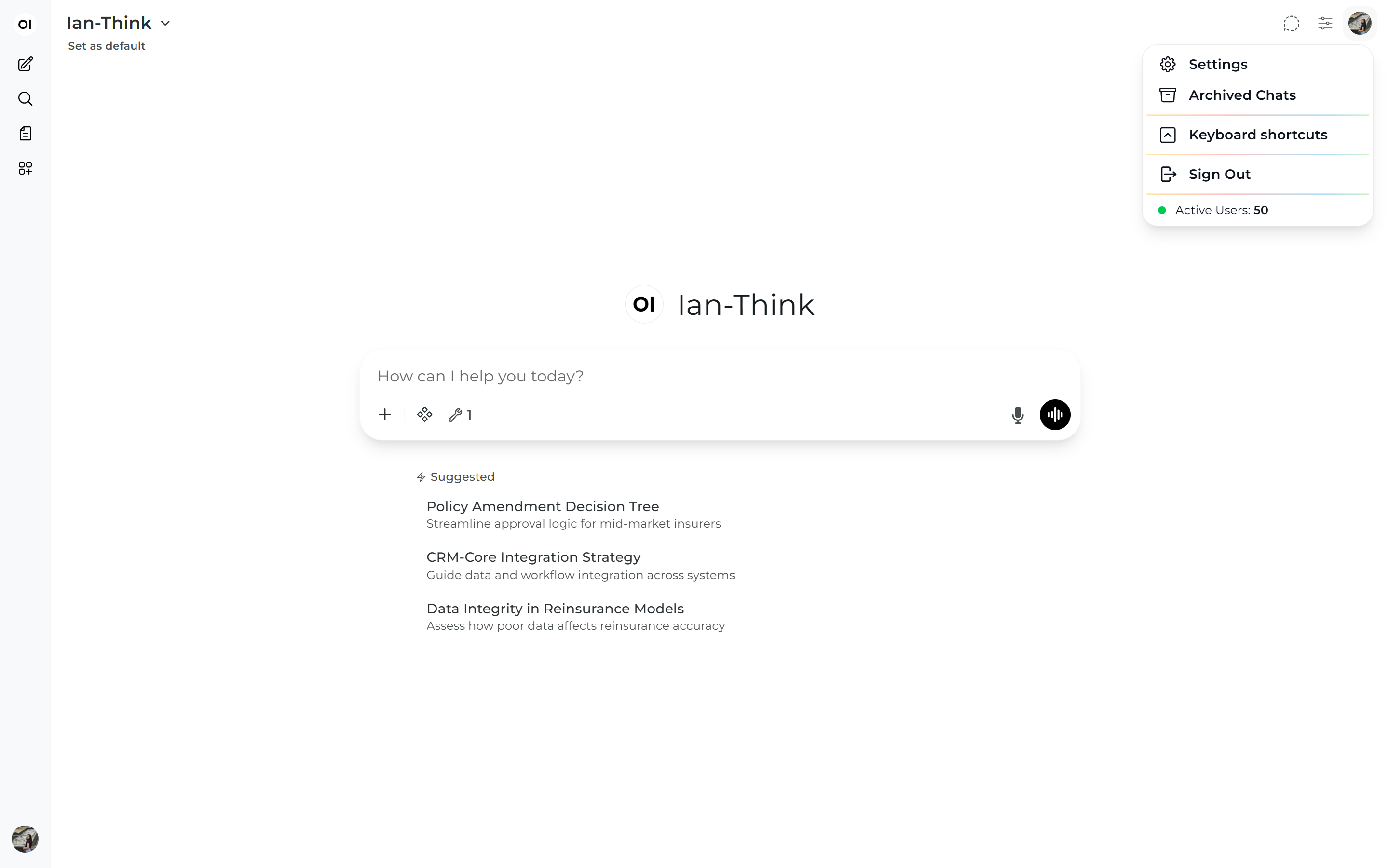
Step 2 — Open the Profile Menu
Click the profile icon in the top-right corner to open the user menu.
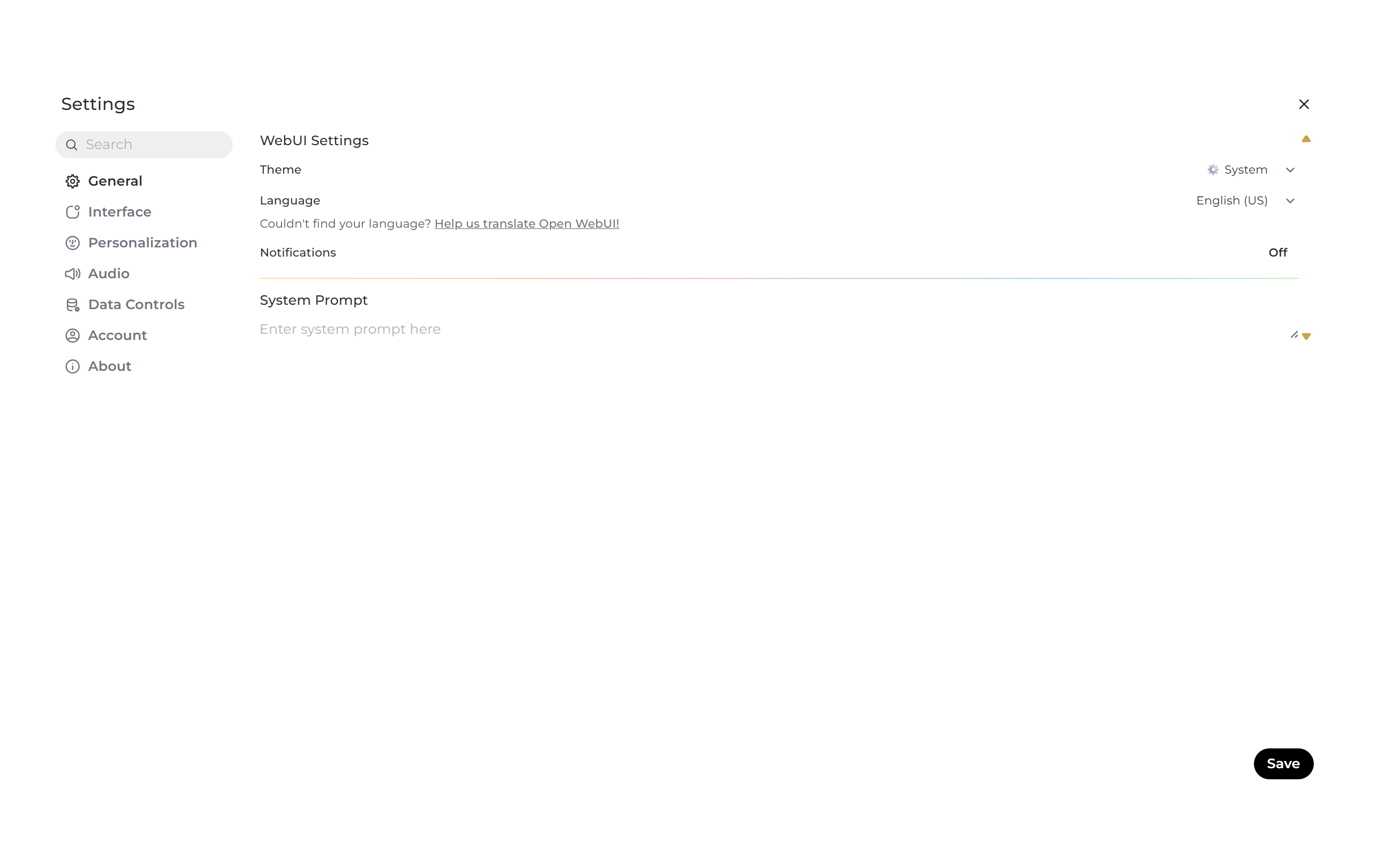
Step 3 — Open Settings
Click Settings in the dropdown to open the IAN Think settings panel.
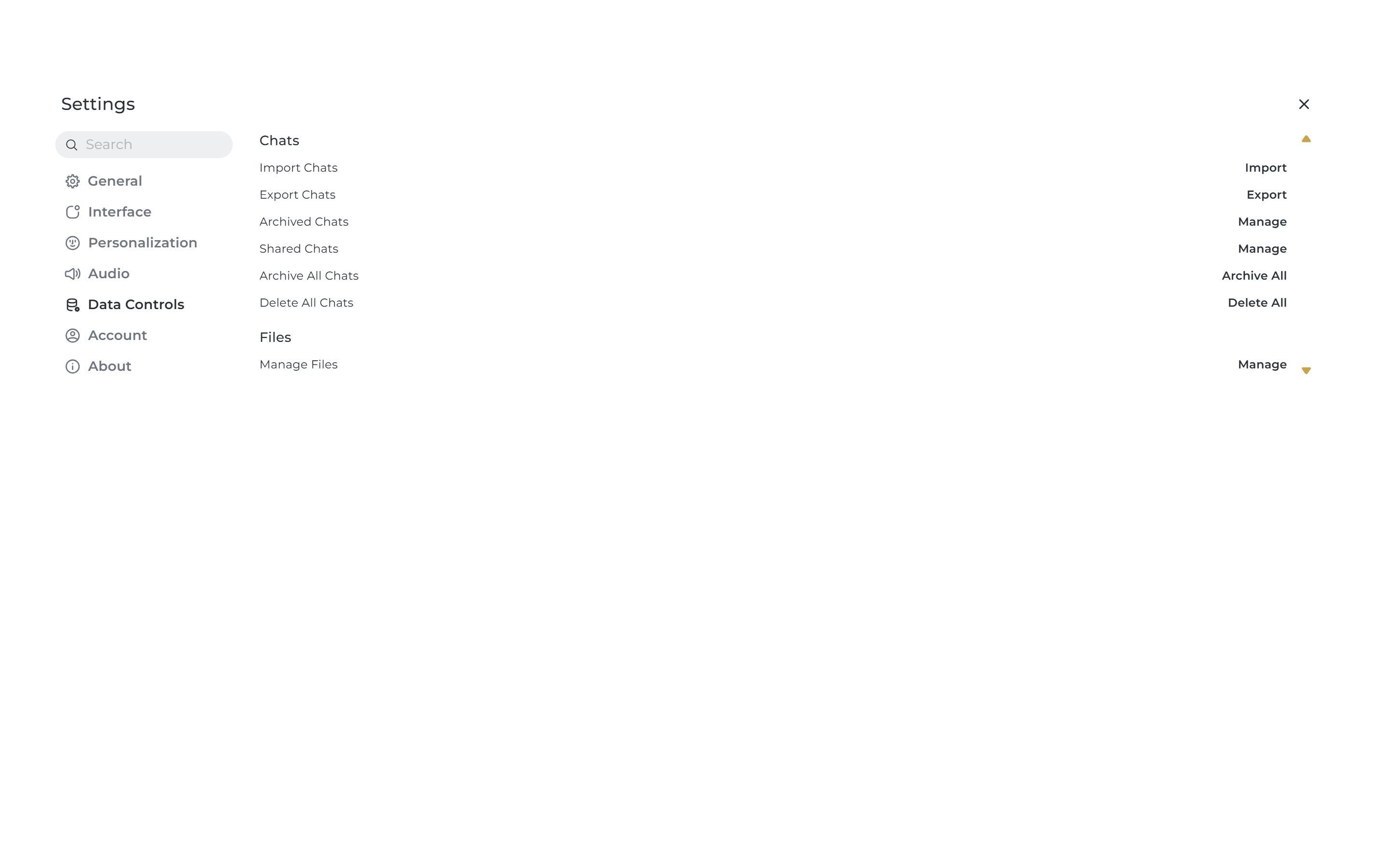
Step 4 — Navigate to Data Controls
Click the Data controls tab inside Settings.
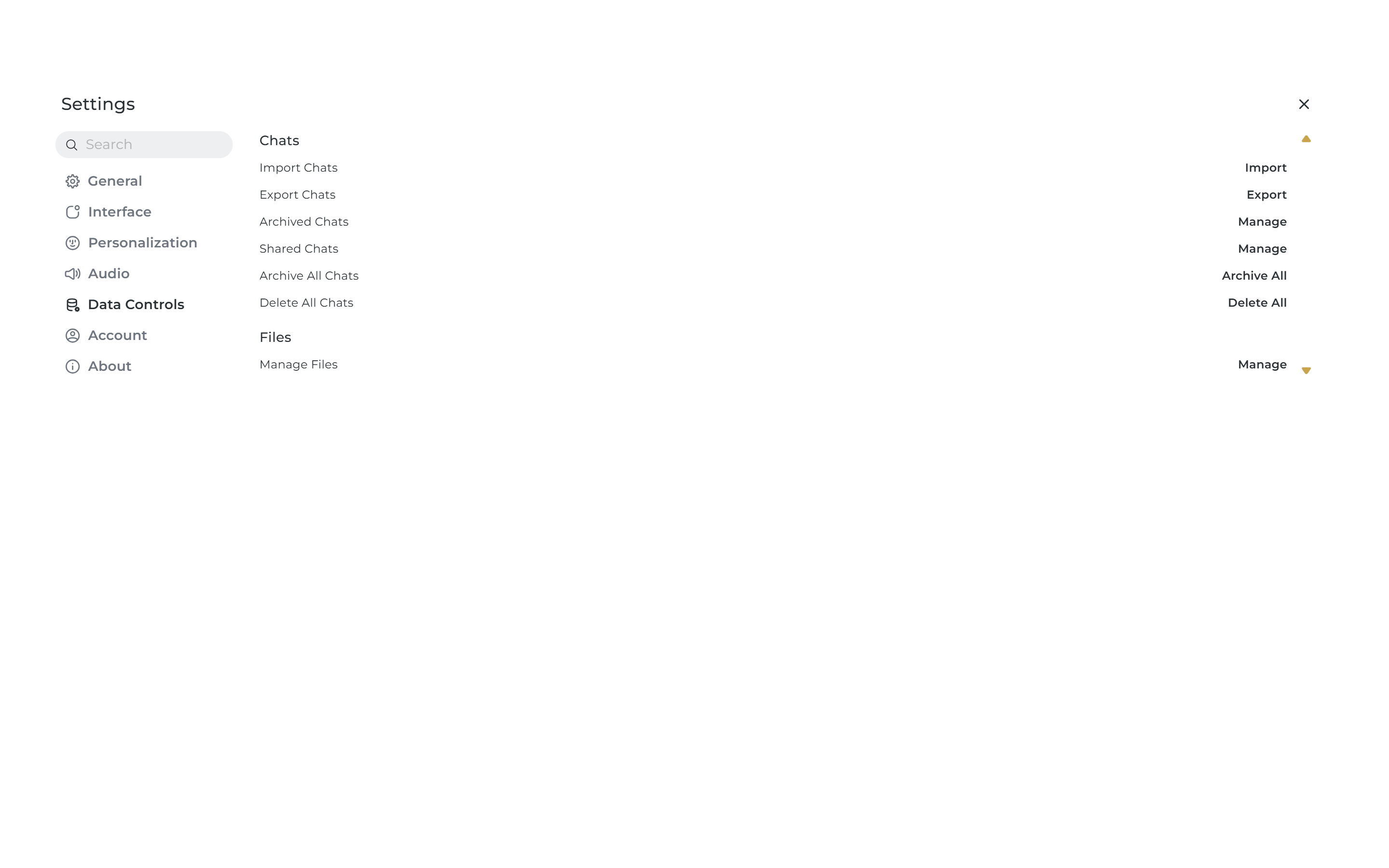
Step 5 — Click Import Chats
Locate and click the Import chats button. A file upload dialog will open.
Step 6 — Select the Exported File
In the file picker, navigate to the chat-export-<timestamp>.json file you downloaded from Streamline and select it.
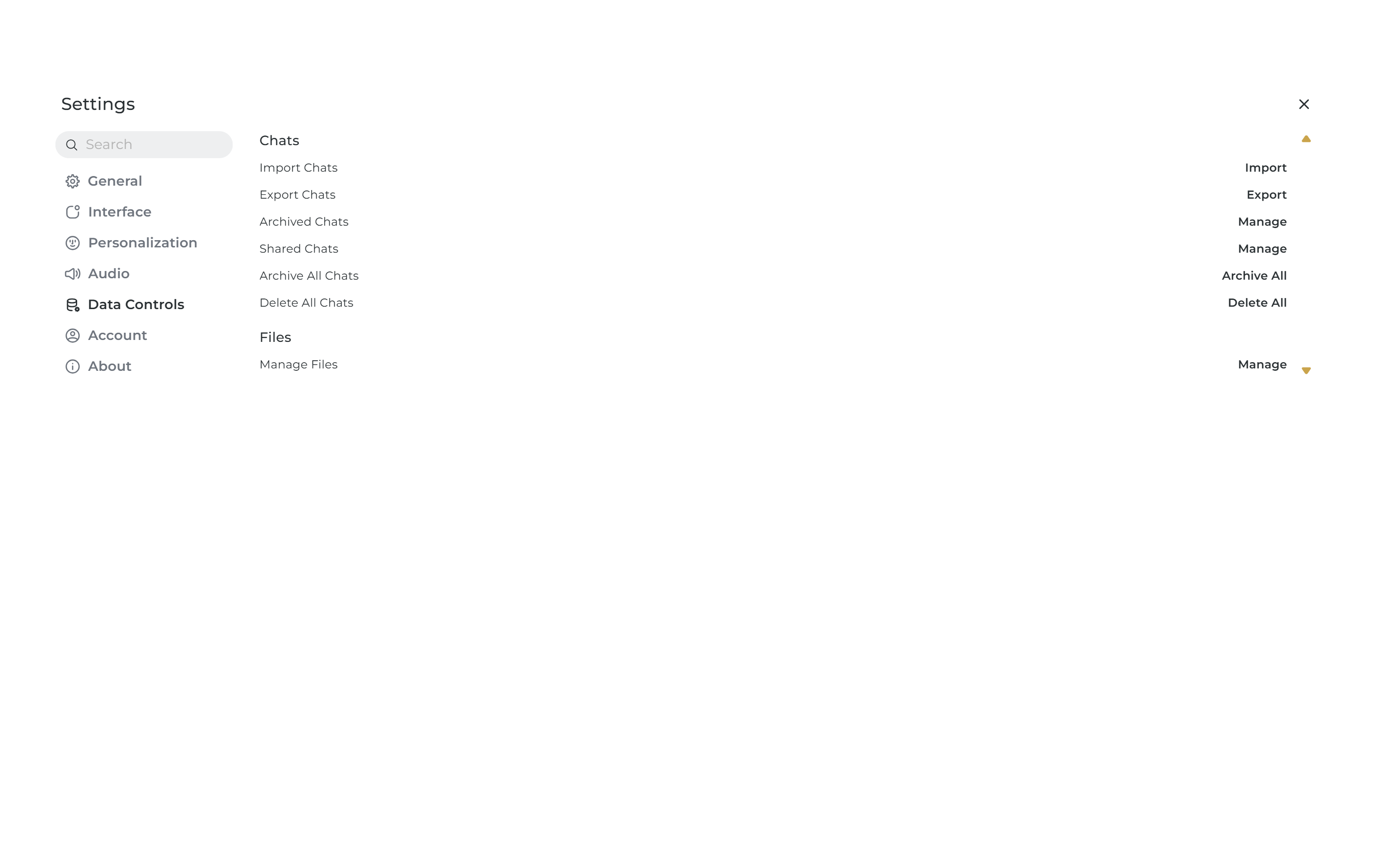
Step 7 — Confirm Import
Click the Import or Confirm button. A success notification will appear when complete.
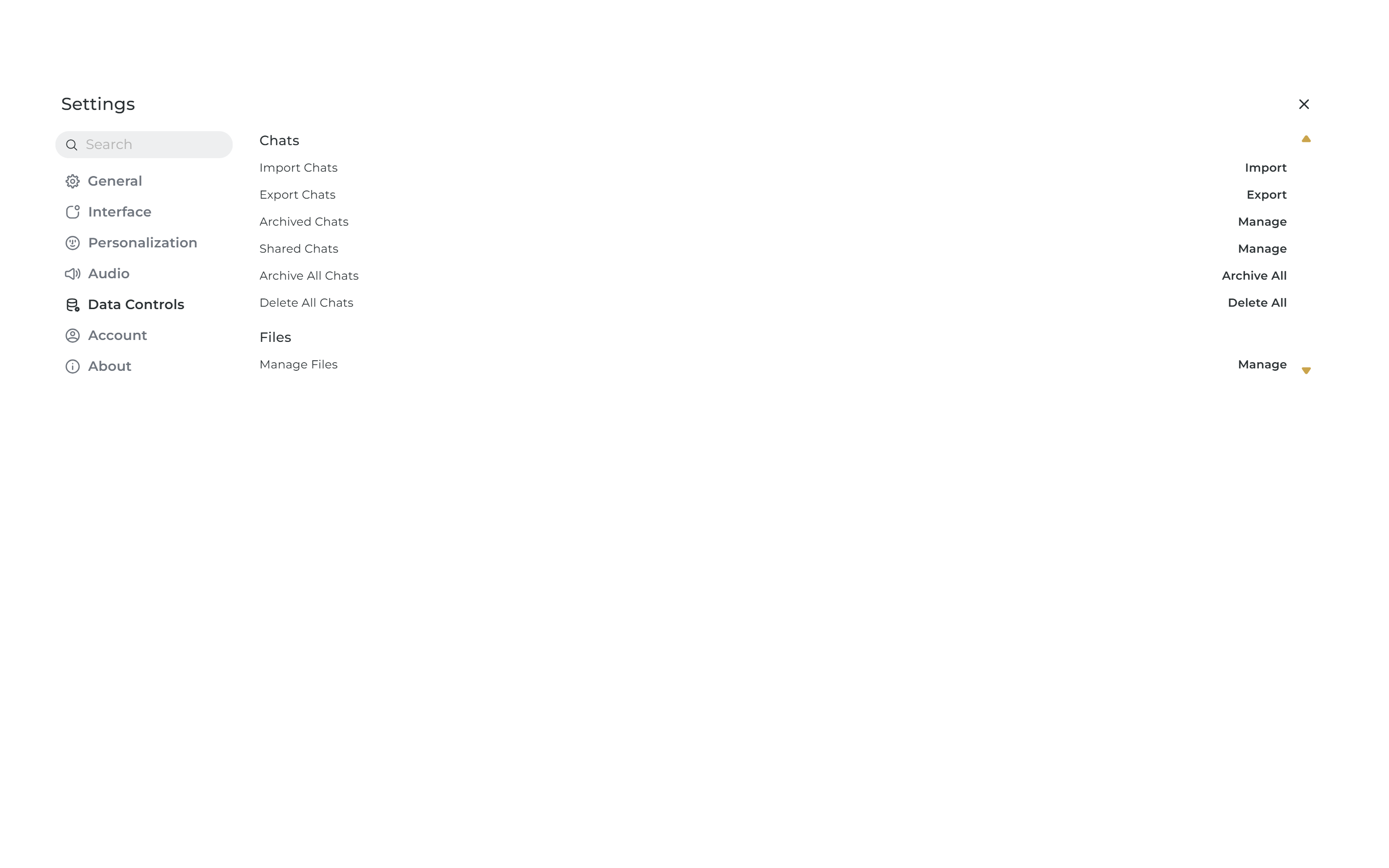
Validate the Migration
After import, verify everything worked:
- A success toast or notification appeared
- Your chat history is visible in the IAN Think sidebar
- Individual conversations are openable and readable
TipImport is **non-destructive** — it does not remove any existing IAN Think conversations.
Troubleshooting
| Issue | Cause | Fix |
|---|---|---|
| Import fails with an error | Wrong file format | Ensure you upload .json, not the raw .zip |
| Chats do not appear after import | Page not refreshed | Hard refresh with Ctrl+Shift+R |
| File upload dialog does not open | Browser extension blocking | Try in a private/incognito window |
| Login loops or SSO fails | Session expired | Clear cookies and try again, or contact IT |
NoteNeed more help? Visit [FAQ & Troubleshooting](/docs/ian-think/faq-and-troubleshooting) or [Support](/docs/ian-think/administration/support-and-escalation).