

Export Chats from Streamline
How to download your complete Streamline chat history as a JSON file.
Export your full conversation history from Streamline using the built-in Data Controls feature.
Step 1 — Open Streamline
Navigate to streamline.xceedance.com and sign in with your Xceedance SSO credentials.
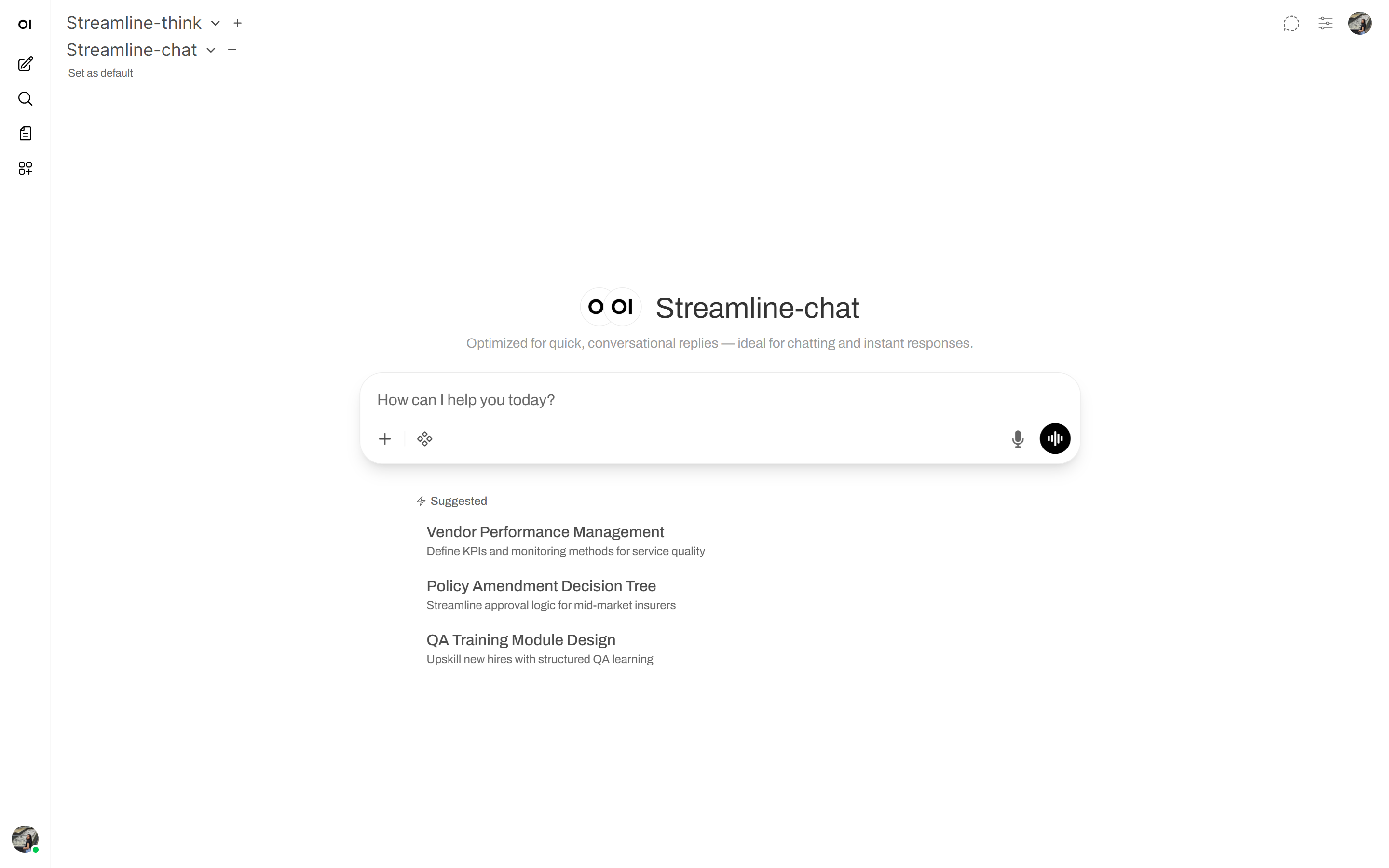
Step 2 — Open the Profile Dropdown
Click the profile icon in the top-right corner of the navigation bar to open the user dropdown menu.
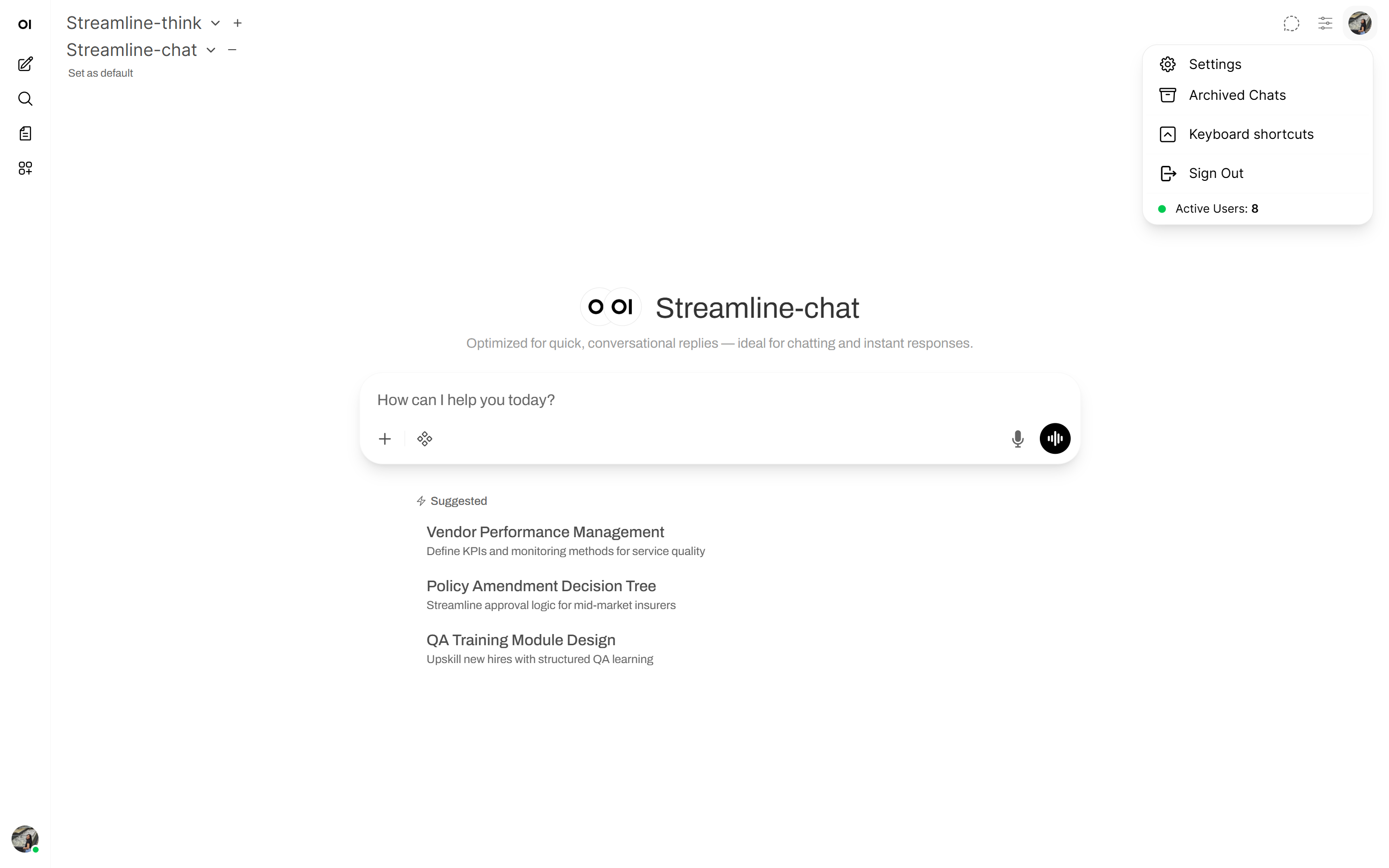
Step 3 — Open Settings
In the dropdown, click Settings to open the settings panel.
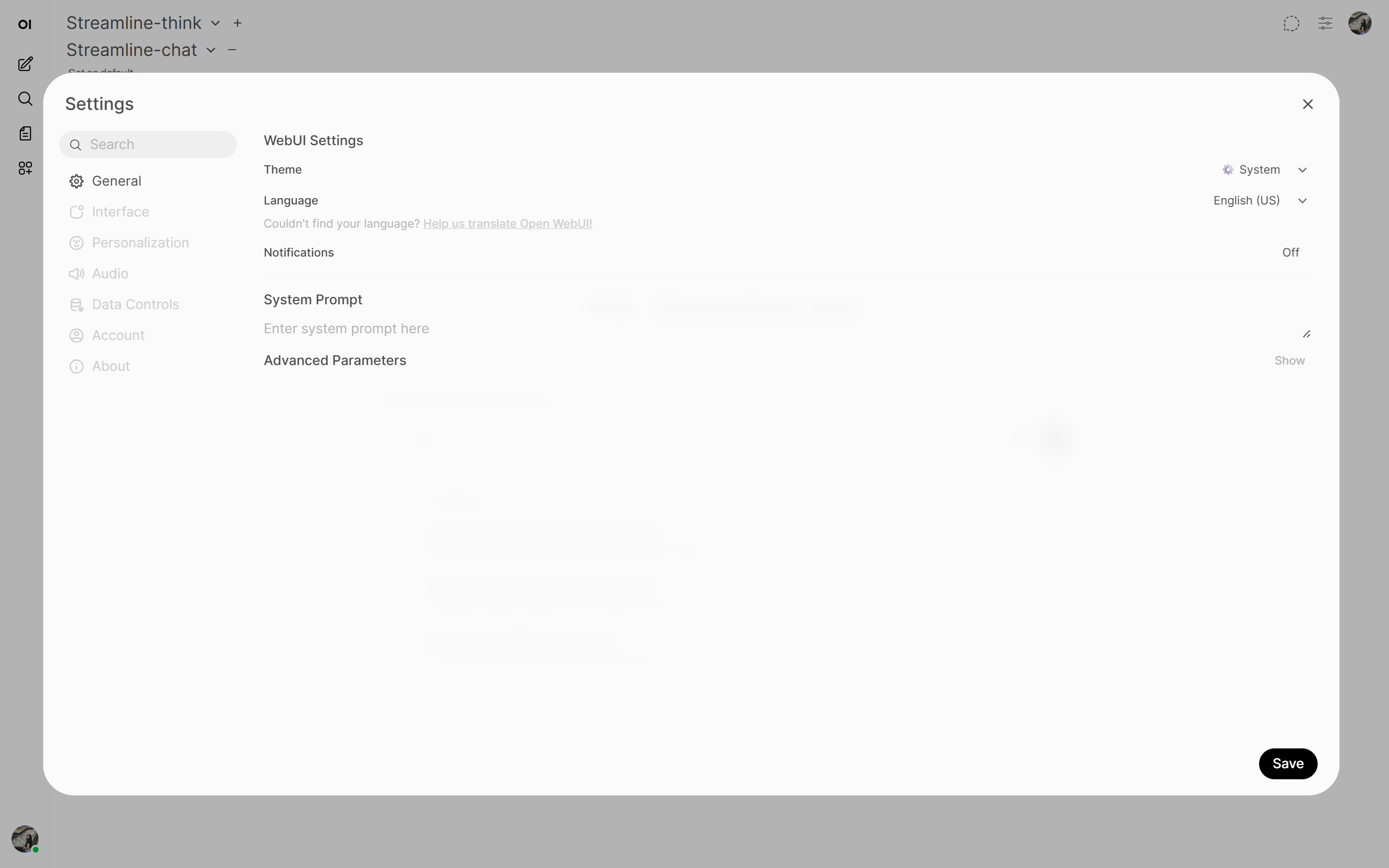
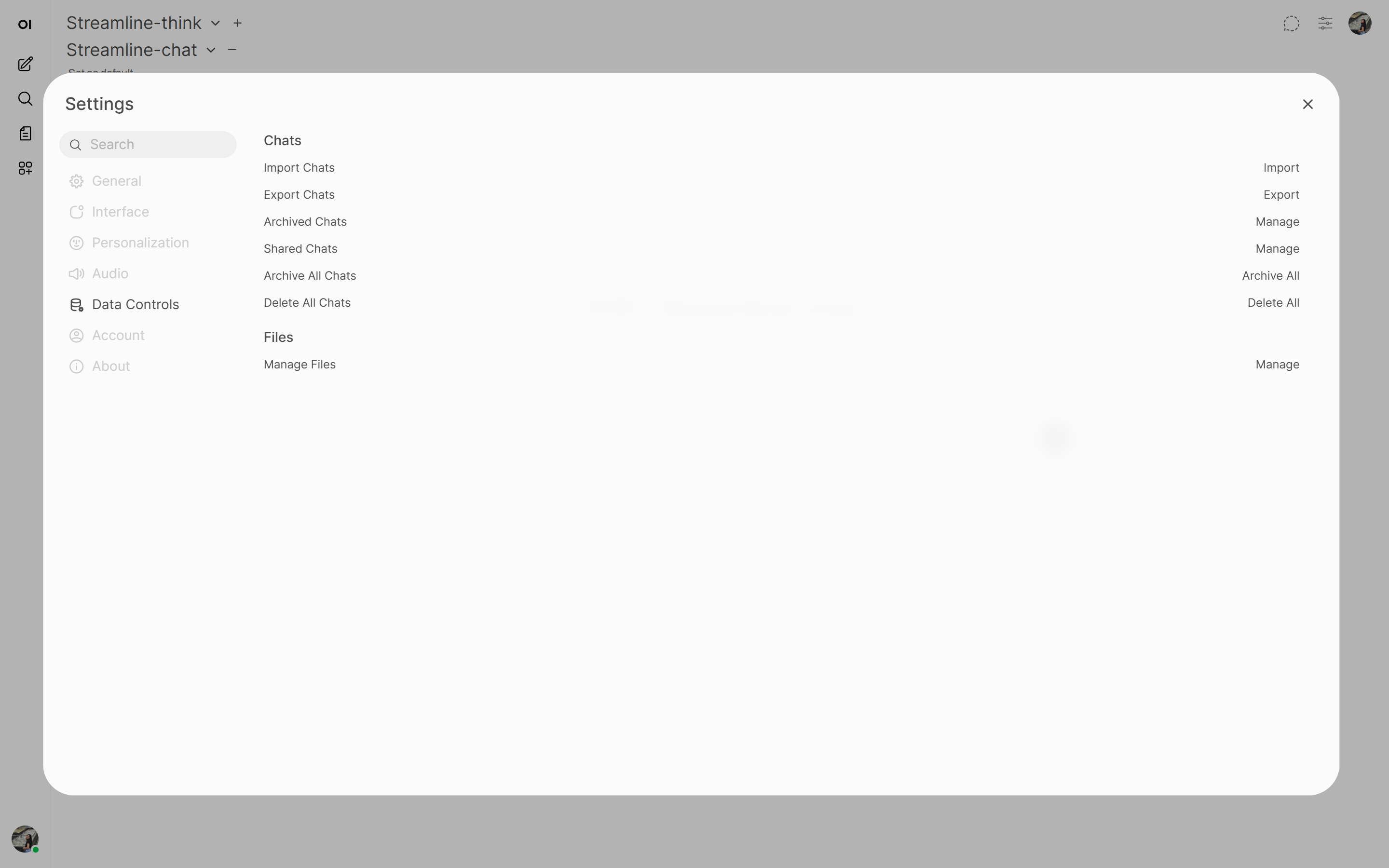
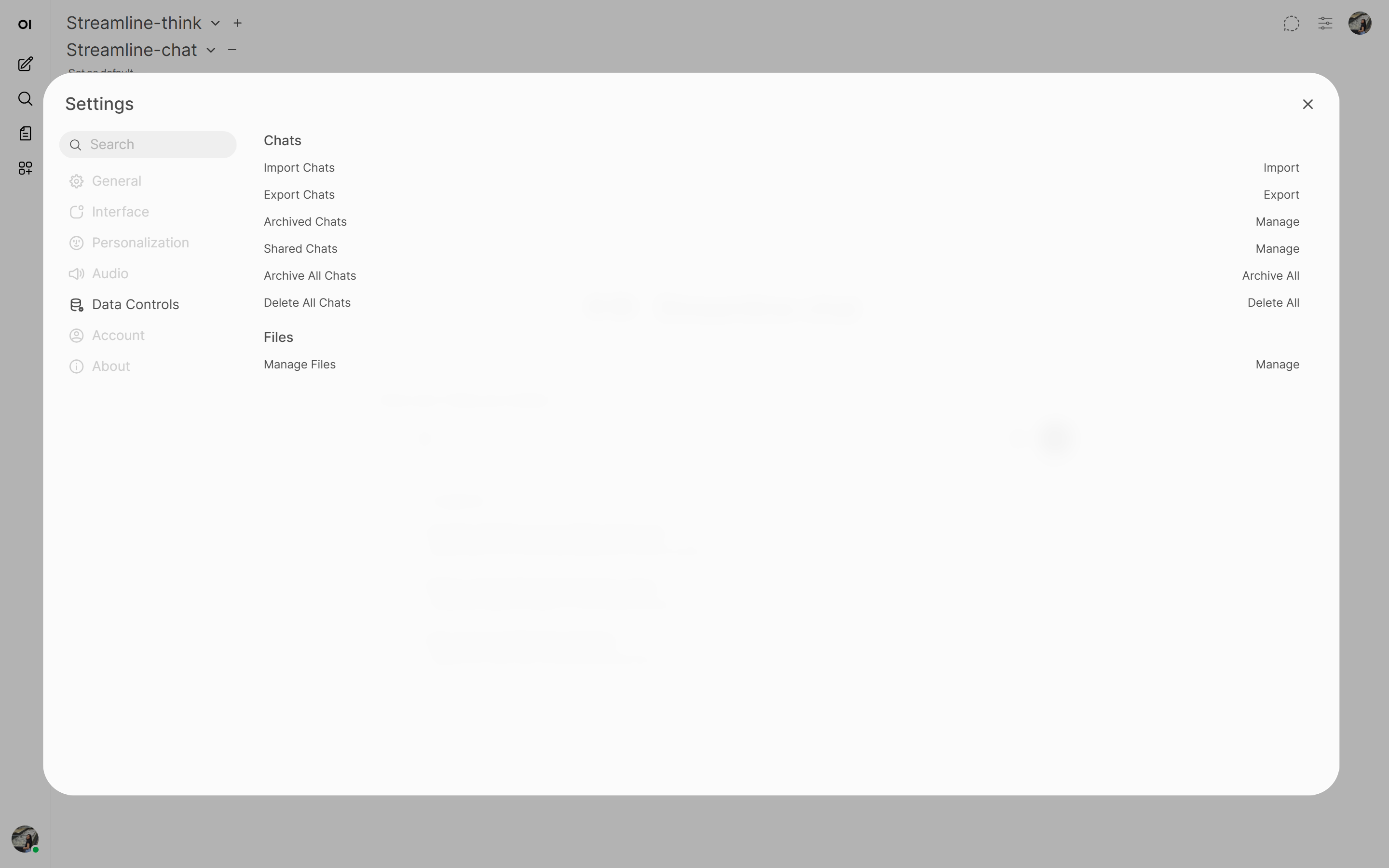
Step 4 — Navigate to Data Controls
Inside Settings, click the Data controls tab. This section contains all data management options including export.
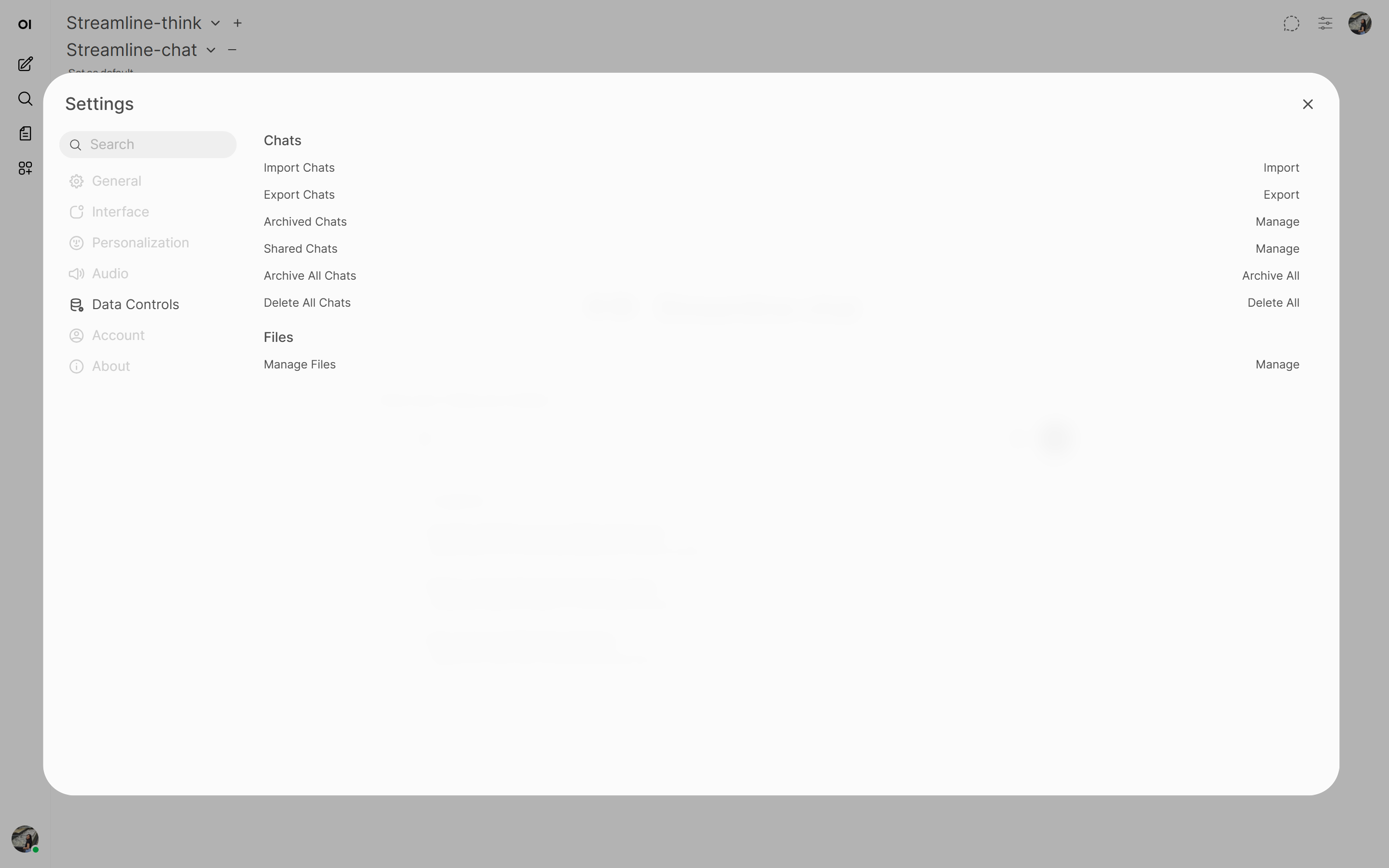
Step 5 — Click Export Chats
Locate the Export chats button and click it. Your browser will begin downloading the file immediately.
Step 6 — Wait for Download to Complete
Allow the browser to save the file. The filename will be something like chat-export-<timestamp>.json.
Verify the Download
Before proceeding, confirm:
- The file exists in your Downloads folder
- The file size is greater than 0 bytes
- The extension is
.json(if.zip, extract it first)
Next Step
Proceed to Import Chats into IAN Think to complete the migration.